


Playlists are a fantastic way to personalize your music experience on Spotify. Whether you want to create it for a special occasion or share your favorite tracks with friends, this guide will help you master all the tricks of the trade for managing your favorite playlists on Spotify.
How to create a playlist on Spotify
Creating a playlist on Spotify is easy, and lets you group your favorite songs according to your tastes and moods. In addition to playlist creation, Spotify offers flexible Spotify subscription sharing options, enabling multiple users to enjoy music together. We’ll show you step-by-step how to create a playlist on Spotify, and how to personalize it with a stunning cover and captivating description. This feature is particularly useful if you’re using a shared subscription, as it allows each user to contribute to a common musical experience while keeping their personal space separate.
1. Go to the “Library” tab in the navigation bar.
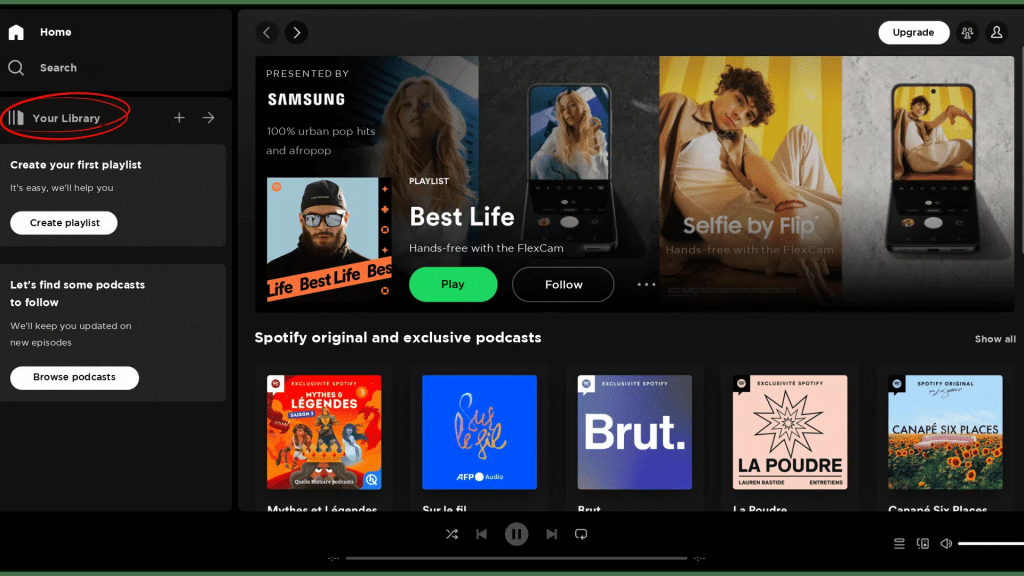
2. Click on “Create playlist” or on the “+” icon.
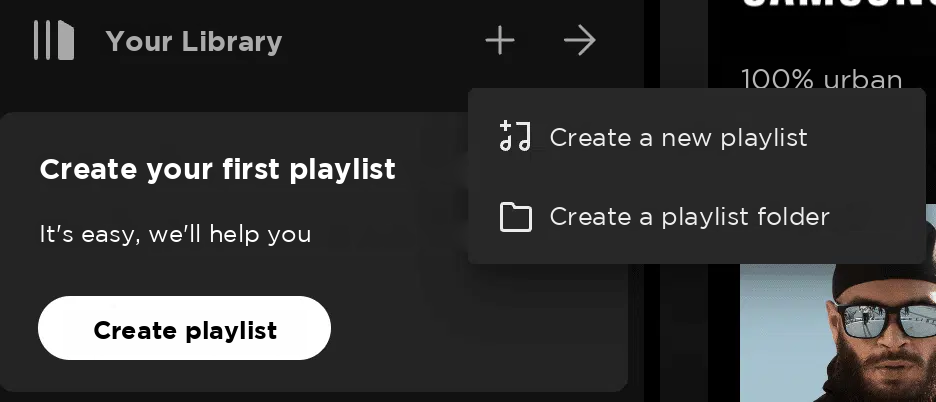
3. Give your playlist a name and add a description if you wish.
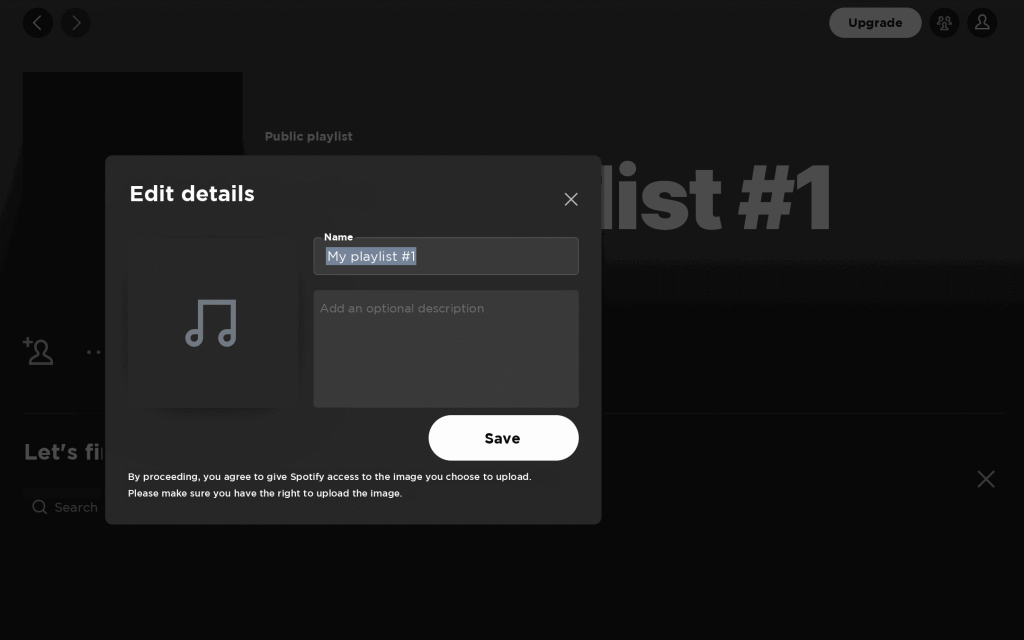
4. Search for songs, albums or artists in Spotify’s search bar
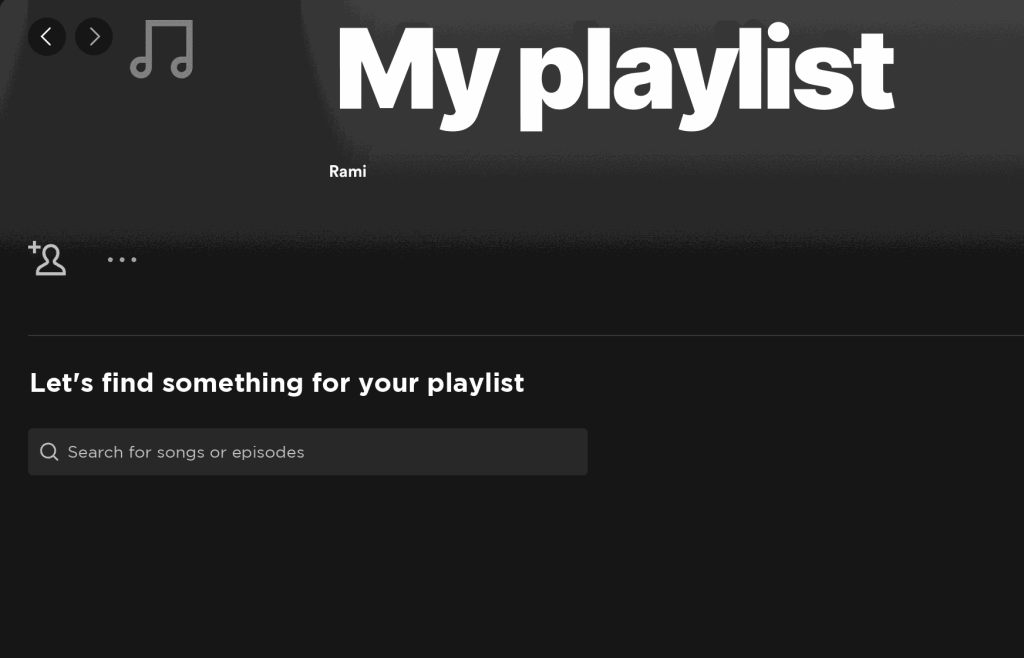
5. Otherwise, click on “…”.

6. Then “Add to playlist” and select a playlist.
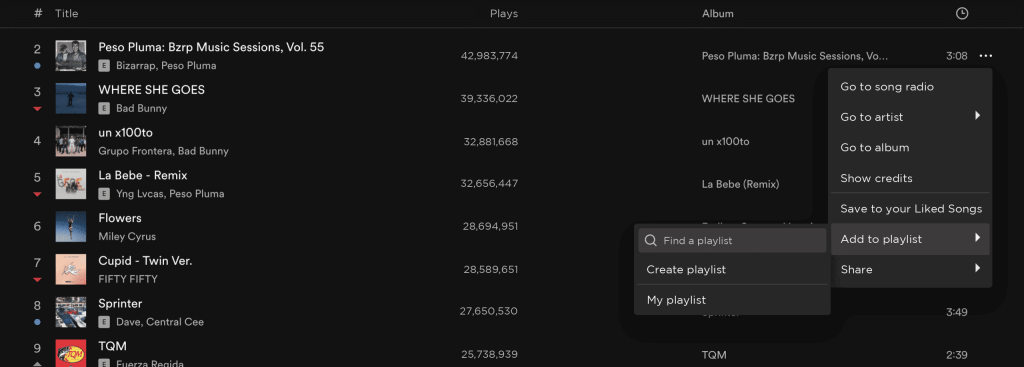
You can also drag and drop tracks into a playlist.
These steps will have you creating your own personalized Spotify playlist in no time!
How to download a playlist on Spotify
Want to listen to your favorite songs offline? Spotify’s download function makes it easy. To do this, you must be a Spotify Premium subscriber.
1. Open the playlist you wish to download from Spotify.
2. Click on the three vertical dots (or the three horizontal dots on some devices)
3. Press the “Download” button
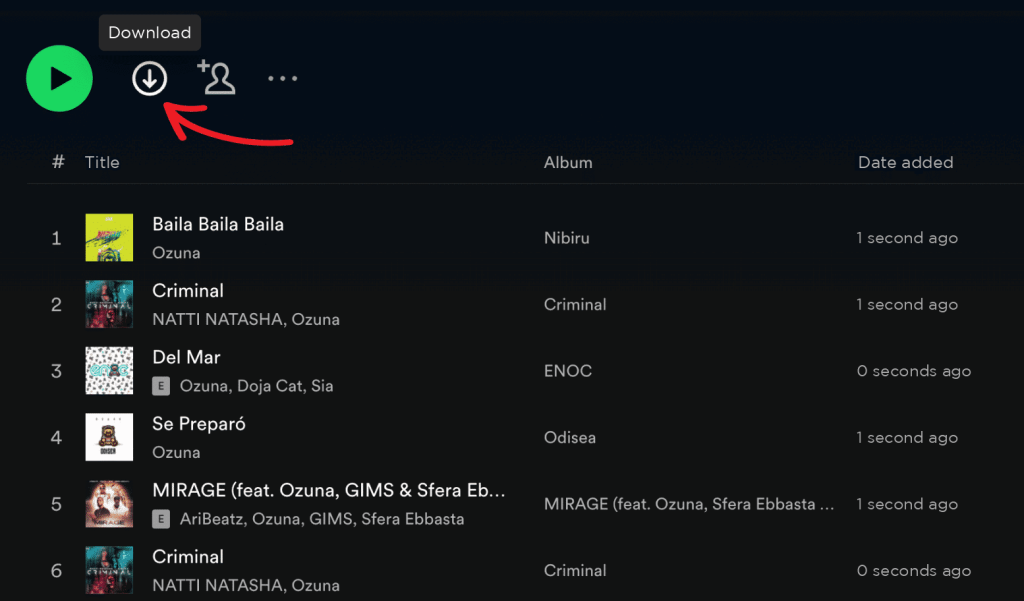
4. Spotify will start downloading the songs in the playlist to your device. Check that you have sufficient storage space for downloaded songs.
By following these simple steps, you’ll be able to enjoy your favorite Spotify playlist even without an Internet connection.
How to delete a playlist on Spotify
If you want to make room for new playlists, or if you no longer listen to a specific playlist, it may be a good idea to delete it from your Spotify library.
1. Go to the “Library” tab in the navigation bar and select the “Playlists” tab to view all your playlists.
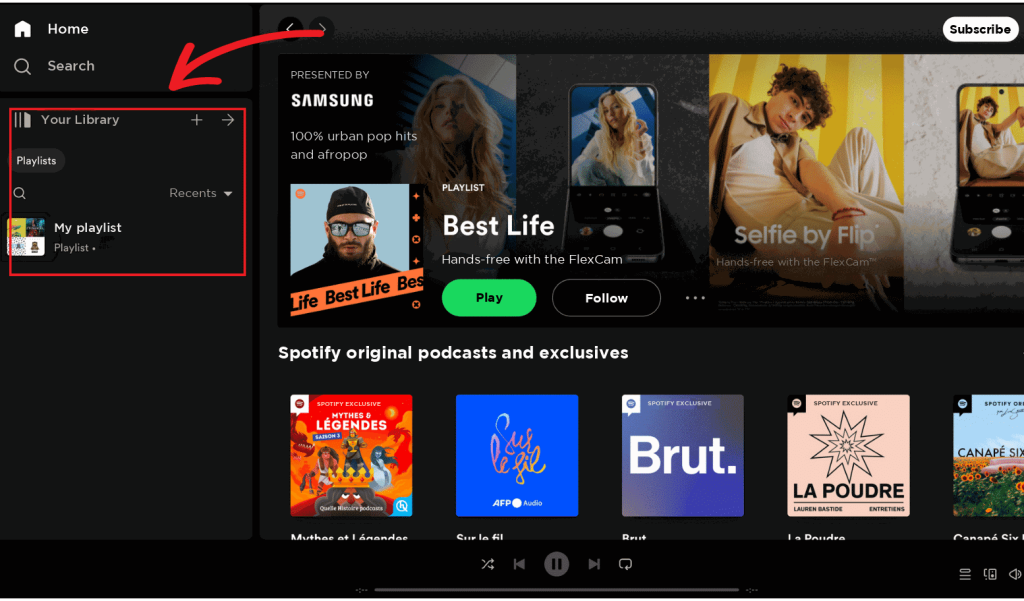
2. Find the playlist you wish to delete and press to open it.
3. Click on the three vertical dots (or the three horizontal dots on some devices) at the top right of the screen.
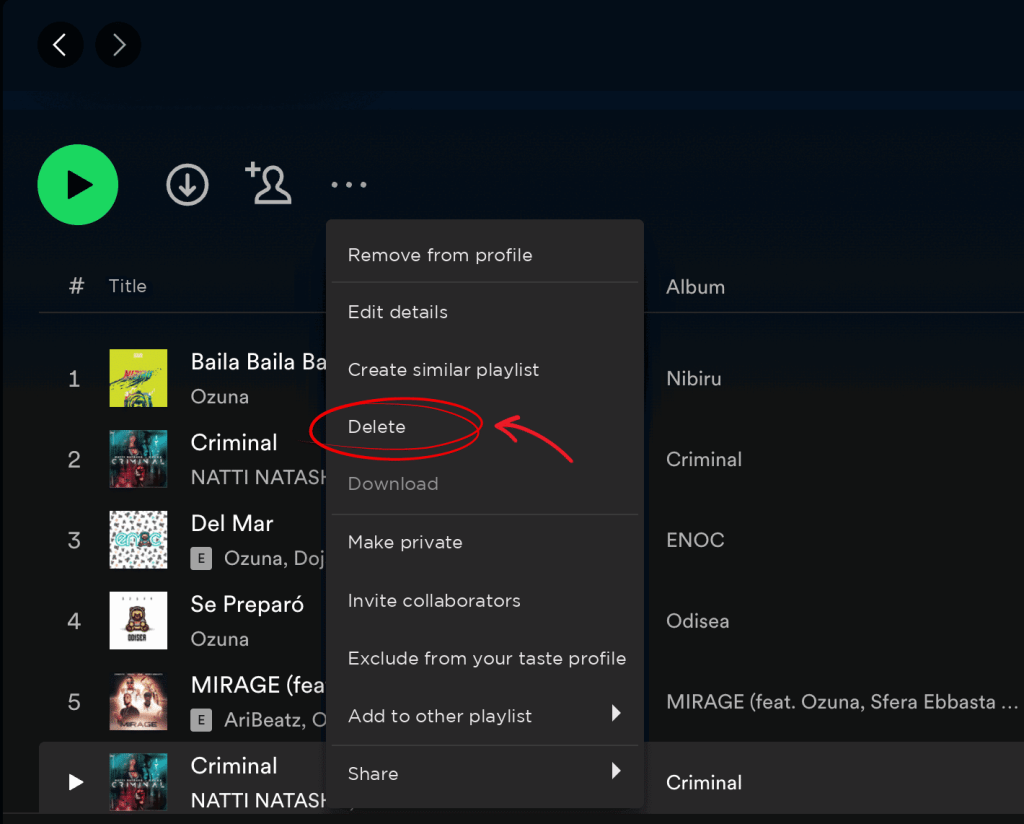
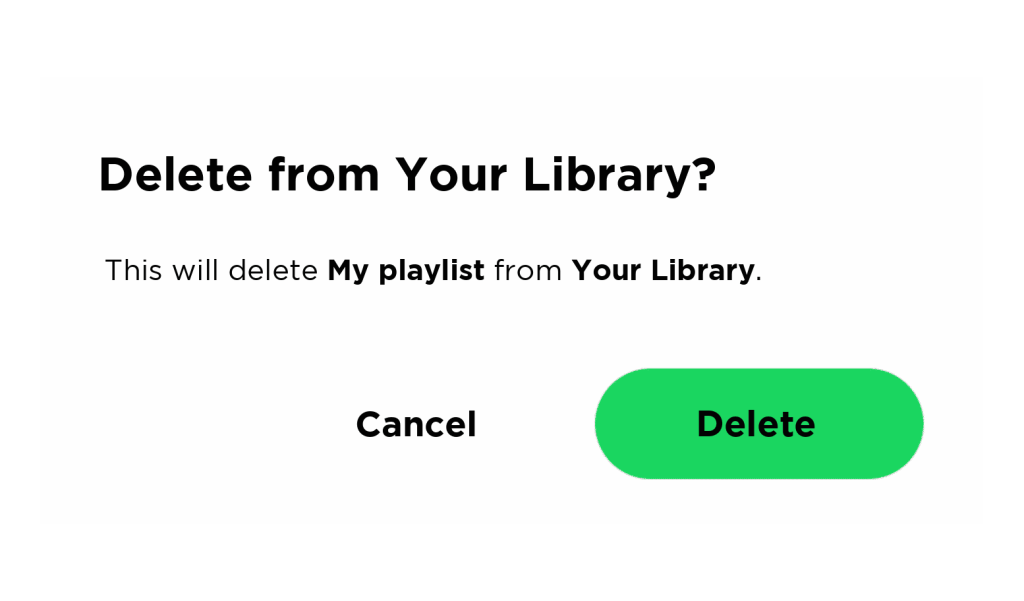
5. Select “Delete playlist” and confirm your choice.
How to share a Spotify playlist
Sharing a playlist with friends, colleagues or even on social networks can be a great way to discover new music and create shared moments.
1. Open the playlist you wish to share on Spotify.
2. Click on the three vertical dots (or the three horizontal dots on some devices) at the top right of the screen.
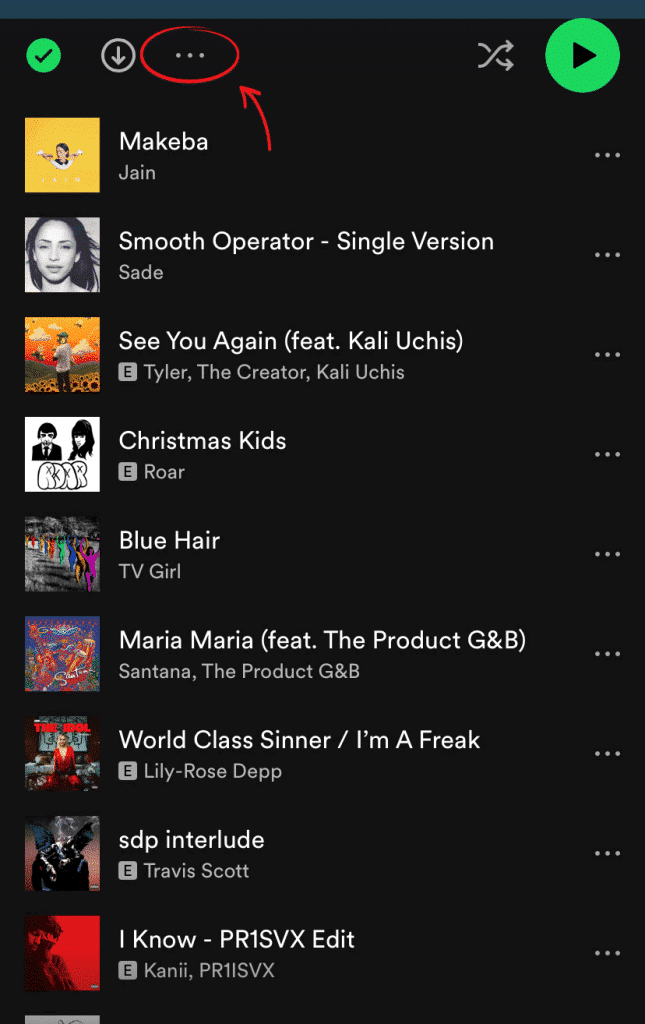
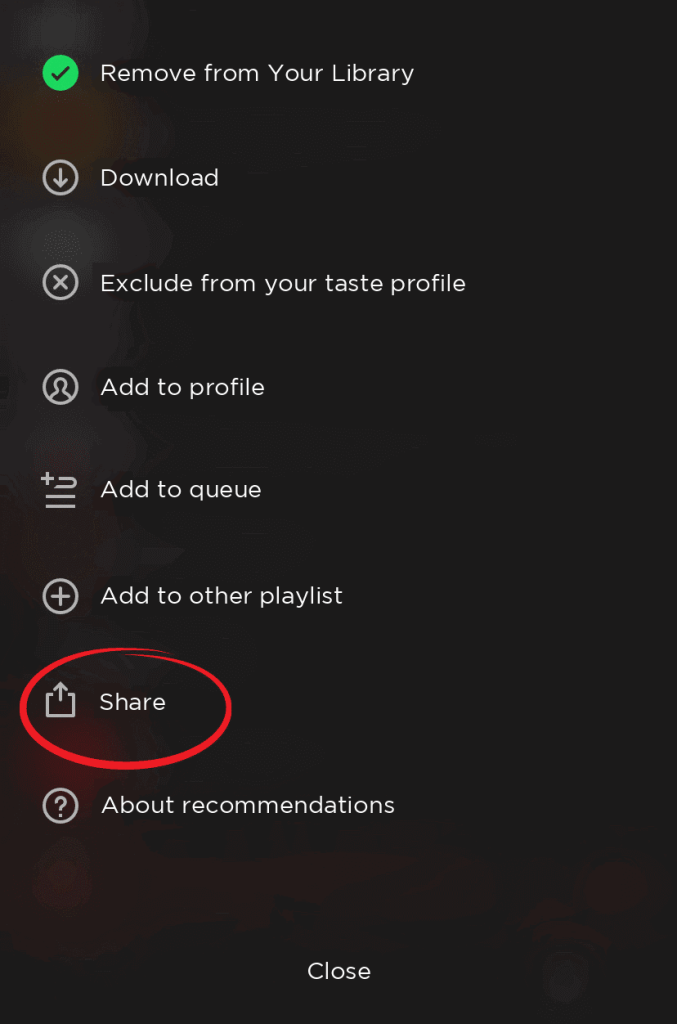
3. Select “Share” from the drop-down menu.
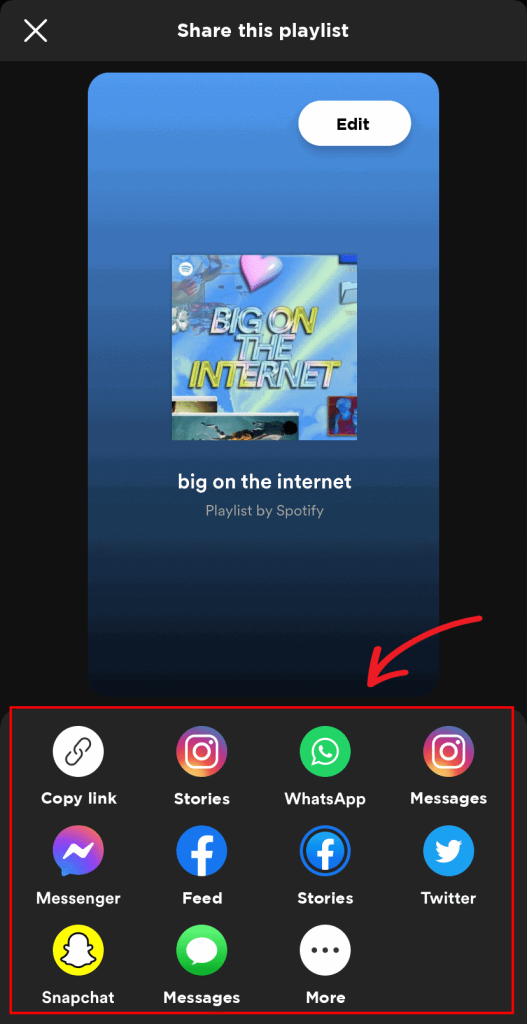
4. Choose the desired sharing option, such as “Share on social networks” or “Copy link”.
With this comprehensive guide to managing your Spotify playlists, you’re now ready to make the most of your music experience. Whether you want to create, download, delete, share or quickly access your favorite playlists, these practical tips will help you manage your playlists efficiently and enjoyably on Spotify. Enjoy your favorite music anytime, anywhere!