

You’ve probably noticed: for some time now, Spotify has been launching videos automatically when you listen to your favorite tracks. Whether full-length music clips or short looped animations, the application increasingly seeks to capture your eyes rather than just your ears.
Yet many of us prefer to enjoy Spotify without video, and I personally find it particularly annoying when I’m working. In any case, there are many reasons to remove video from Spotify:
- Save on mobile data: Loading videos consumes a lot of data. If your plan is limited, this is the best way to drain it quickly.
- Lack of interest: You’re there for the music, not to stare at a screen.
- Visual disturbance: these light animations can be very distracting, especially at night or in the car.
- Protect the very young: Some clips are not at all suitable for children. What’s more, deactivating the image will limit their addiction to screens and keep them in a passive listening mode.
If you’re feeling like Spotify video is impossible to turn off and you’re desperate to switch to Spotify audio-only mode, you’ve come to the right place! We’re going to tell you how to get back to Zen listening.
💡 Important info > Just as you optimize your data consumption by turning off video, you can also optimize your budget! If you’re using an individual Spotify subscription, you’re paying full price. Thanks to the ShareSub platform, you can join a Spotify Family subscription sharing group or offer your free seats securely. The result? The same premium benefits while saving up to 70% on your monthly bill. A clever trick for your purchasing power!
Remove video from Spotify on PC and Mac
To remove Spotify animation and automatic videos from your computer, the procedure is very simple and takes just a few seconds. Just follow the guide:
- Open your Spotify application.
- Click on your profile photo in the top right-hand corner, then select “Preferences”.
- Scroll down to the “Display settings” section.
- Uncheck the “Open videos in enlarged format” option.
- Just below, for Spotify to remove the video loop, uncheck the “Show brief, looping visuals for tracks (Canva)” option.
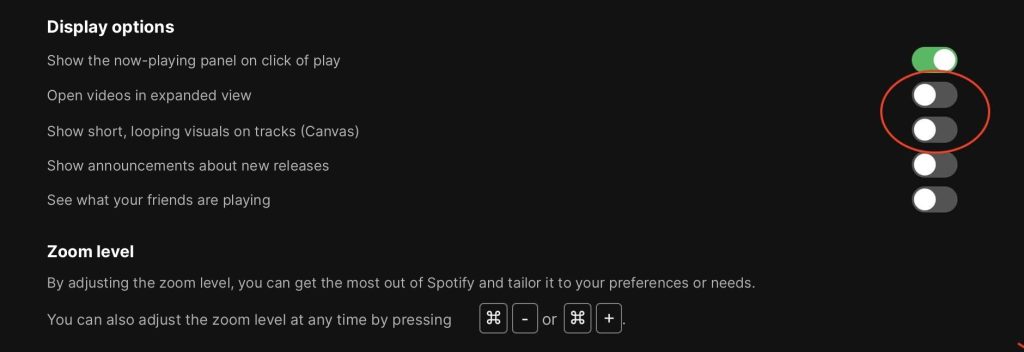
And that’s it! Your application is set up for pure music playback.
How do I disable video on the mobile application?
If you’re looking to remove video on Spotify mobile to preserve your battery and package, the logic remains the same on iOS and Android. I’ll give it to you in 3 steps with visuals.
Deactivate Spotify iPhone and Android video
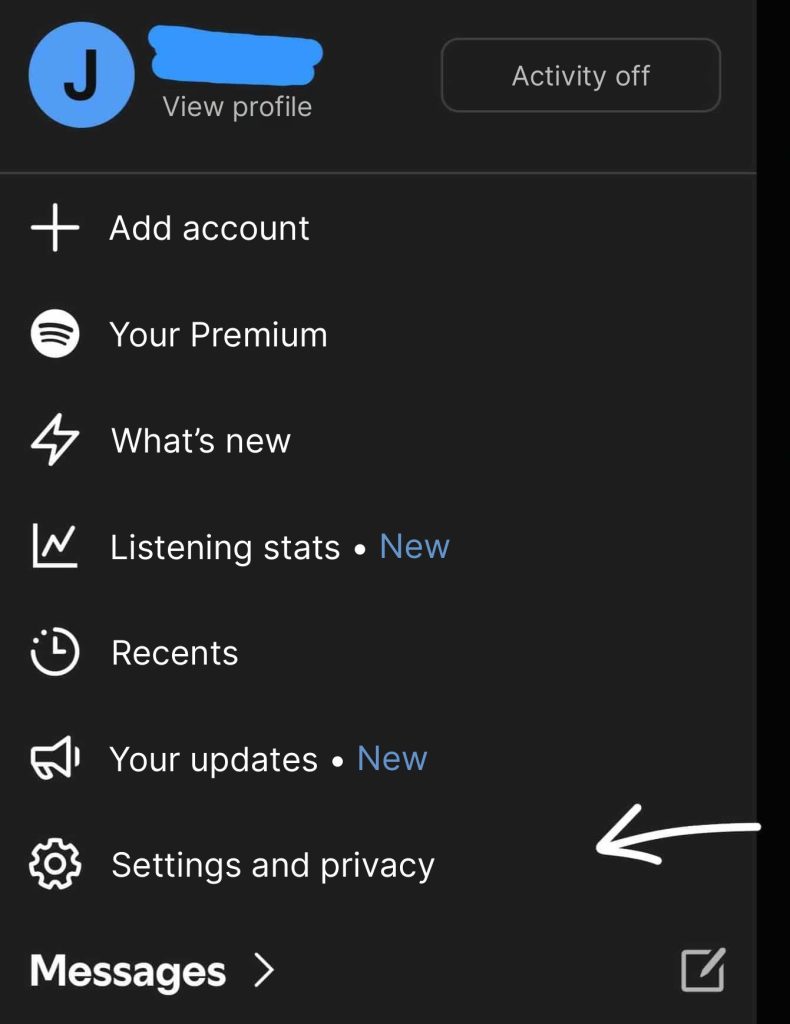
1. Click on your profile, and choose Preferences and Privacy
2. Go to Content and display
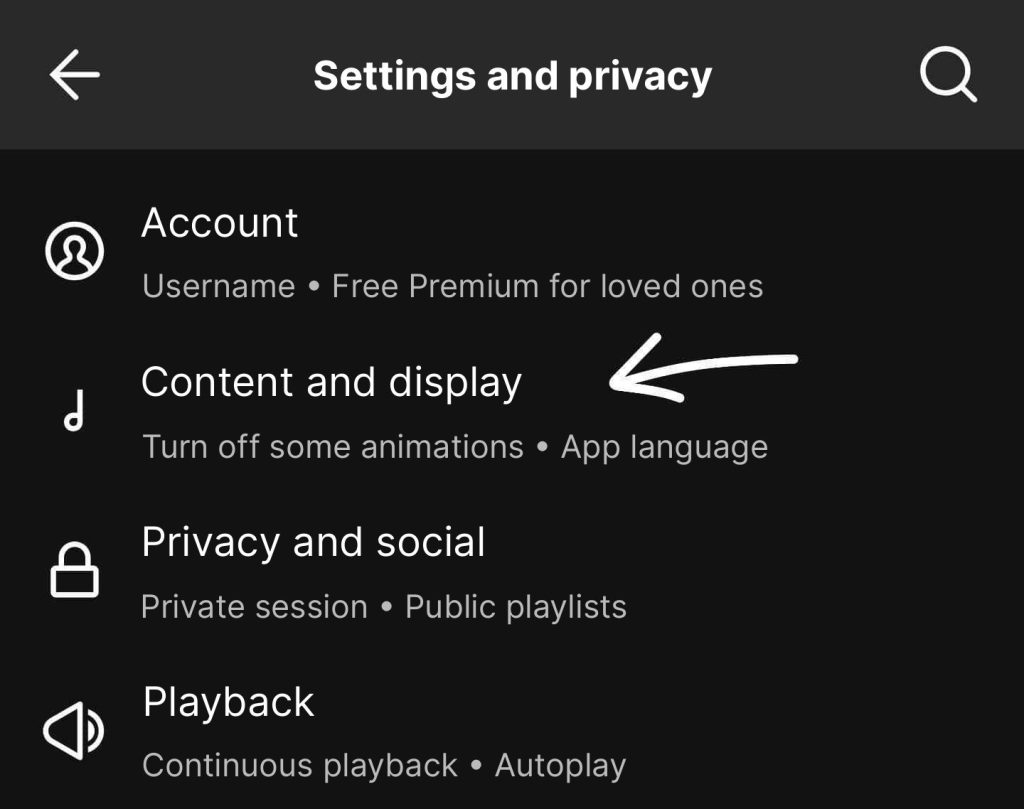
3. To deactivate Spotify Canvas (the famous background video mini-loops), simply uncheck the “Canvas” option.
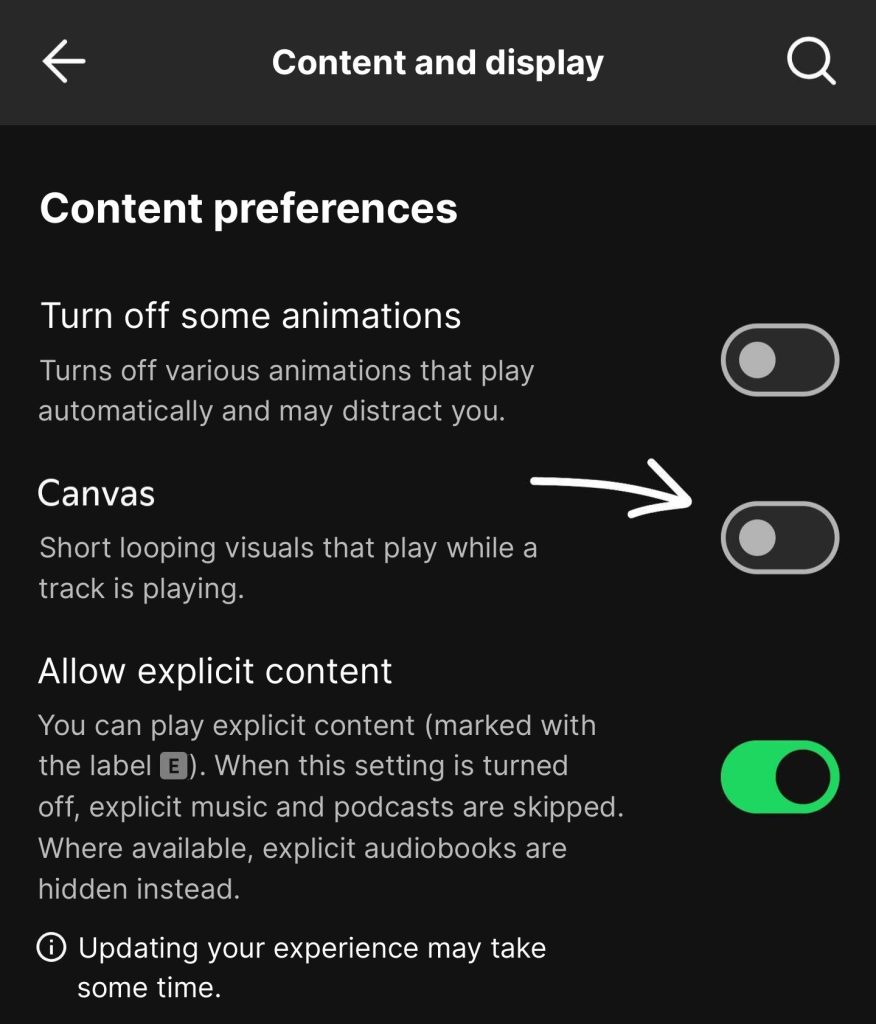
By applying these settings, you’ve finally disabled Spotify videos on your iphone or android, permanently. Now you’re ready to enjoy your music without any unnecessary visual artifacts, saving data, battery life and attention all at the same time!